
Change Order Tracker: Stop Losing Revenue on Undocumented Scope Changes

Construction Change Order Management That Captures Every Billable Scope Change
Let's be honest—change orders can make or break project profitability. You're on-site, a client asks for an extra outlet, upgraded tile, or unexpected subfloor repair. Your crew says "sure" and does the work. But if that verbal approval doesn't turn into documentation, you've just donated labor and materials.
Change orders eat 5-10% of project profits when they're not tracked right. TaskTag turns verbal nods into billable proof—with photos, timestamps, and client approvals built right into your project workflow.
Who this is for: Project managers, remodelers, general contractors, and site leads who deal with mid-project scope changes and need a reliable way to document, approve, and bill for every single one.
What this solves: This workflow eliminates "forgotten" change orders by giving your team a consistent way to capture scope changes the moment they happen—with photo proof, client approvals, and a running log ready for final billing.
Related: How construction teams use TaskTag for change order communication
Common Change Order Problems: Lost Revenue, Disputes, and Frustrated Teams
Without a structured change order tracking system, most construction teams rely on:
- Verbal approvals that disappear into thin air
- Text messages and emails that get buried
- Mental notes that field crews forget to log
- Paper forms that never make it to the office
- Photos scattered across devices with no context
This leads to:
- Lost revenue — Thousands of dollars in extra work that never gets billed
- Client disputes — "I never approved that" arguments with no proof
- Frustrated office teams — Chasing down field crews weeks after the work is done
- Incomplete records — No documentation for warranty claims or future reference
- Missed invoice items — Change orders discovered too late to bill
How TaskTag's Change Order Tracker Turns Scope Changes Into Billable Documentation
With TaskTag's construction change order workflow:
- Field teams create a task inside the job's project the moment a scope change happens
- They add photos, notes, and context immediately—while they're still on-site
- Office teams review the task, approve it, and add pricing notes without phone calls
- You build a running log of documented, approved changes per job—ready for final billing
- Filter by "Change Order" to instantly see all billable extras before invoicing
- Export to QuickBooks, Buildertrend, or your billing system with complete backup documentation
Related workflow: Daily Field Reports with TaskTag
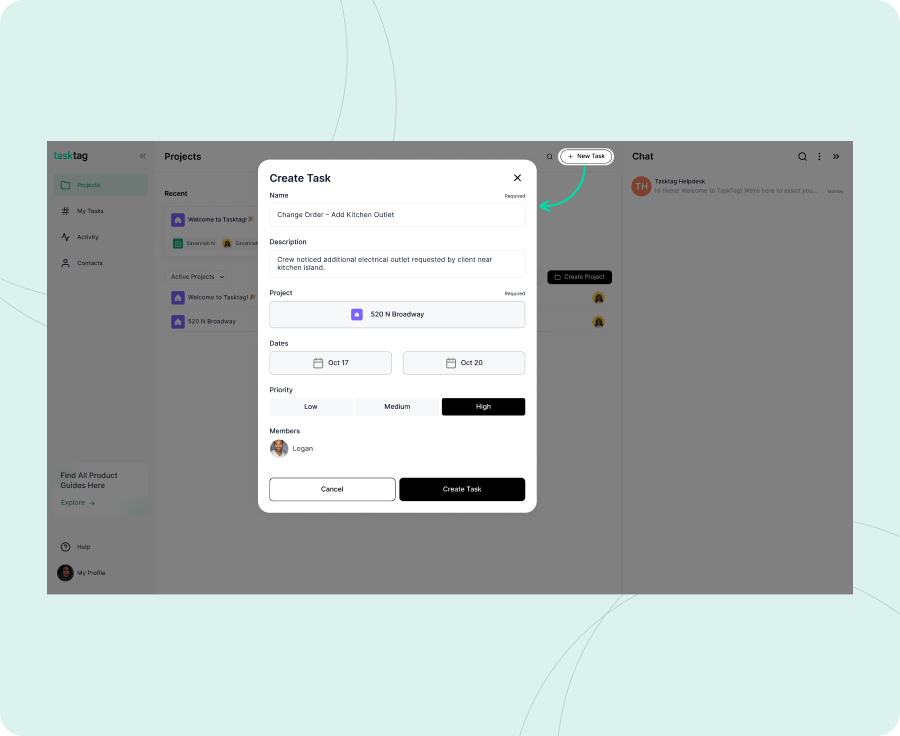
Inside your existing project (e.g., "Greenwood Bathroom Remodel"), create a task titled:
- Change Order – Add Outlet in Kitchen
- Change Order – Tile Full Closet
- Change Order – Subfloor Repair in Hallway
- Change Order – Upgrade to Quartz Countertops
Why "Change Order –" matters: Using consistent naming makes every scope change instantly searchable and filterable—no more hunting through messages or notes.
This task becomes the official record of that scope change, permanently linked to the job it belongs to.
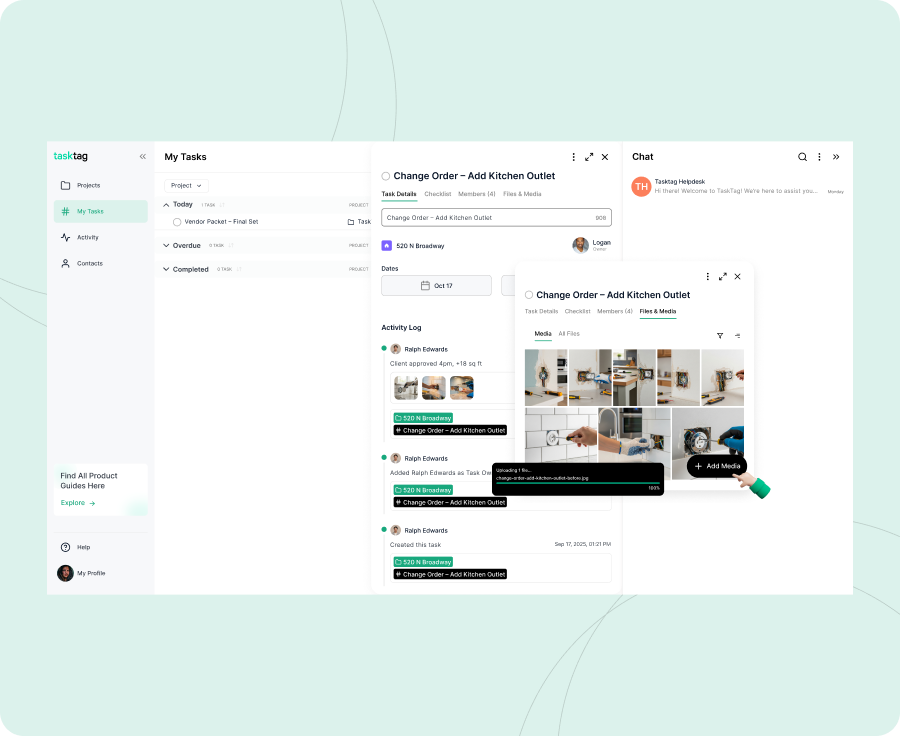
Your field crew or PM should document the change immediately—while they're still on-site:
Take photos showing:
- Before conditions (what the client is seeing that prompted the change)
- Work involved (materials, labor, scope of change)
- After completion (proof the extra work was done)
Add a clear note detailing:
- What changed from the original scope
- Who requested the change (client name or contact)
- When it happened (date and time)
- Relevant context (e.g., "not in original plans," "discovered during demo")
Example note:
"Client asked to tile full closet. Not included in original plans. Added 18 sq ft. 4:12pm today."
"Discovered rotted subfloor during bathroom demo. Homeowner approved repair on-site. Affects master bath timeline by 2 days."
All photos in TaskTag are automatically timestamped—creating indisputable proof of when the change occurred.
For more on photo documentation workflows, see our Delivery Photo Proof Guide.
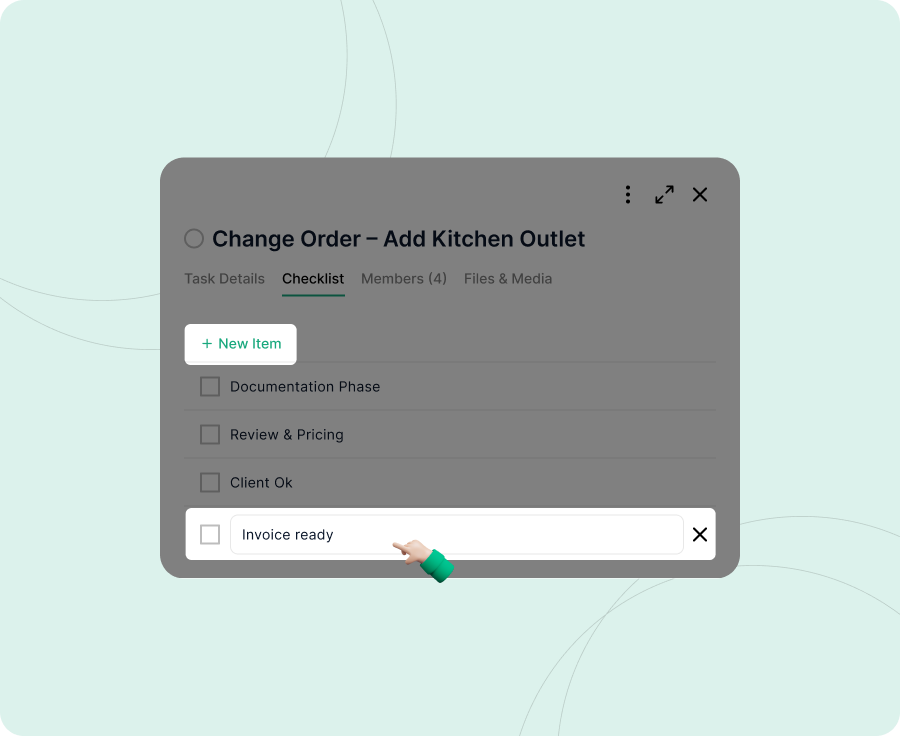
Inside the change order task, add a checklist to track the approval and billing process:
Standard Change Order Checklist:
Reviewed by office/project manager- Pricing calculated and added
- Client approval documented
- Added to final invoice or change order form
- Marked as billable in accounting system
Why checklists matter: They create accountability. Your office team knows exactly what's pending, and nothing falls through the cracks between field and billing.
Critical step: Always document how and when the client approved the change.
Add comments to the task like:
"Homeowner approved this verbally on-site. PM confirmed via text at 4:15pm. Scope updated."
"Client email approval: 'Yes, go ahead with closet tile. Charge me later.' – Sarah Johnson, 9/14 at 4:09pm"
"Signed change order form attached. Client approved $850 for subfloor repair on 9/15."
If the approval happened in chat, paste the conversation directly into the task comment:
Per project chat:
"Can you tile the closet too while you're here?"
"Sure, that'll be 18 sq ft extra. We can handle it."
"Perfect, add it to the bill."
— Client conversation, 9/14 at 3:45pm
Why this matters: When a client disputes a charge 3 months later, you have timestamped, written proof of their approval—not just your word.
For client communication best practices, see our guide on Client Communication in Construction Projects.
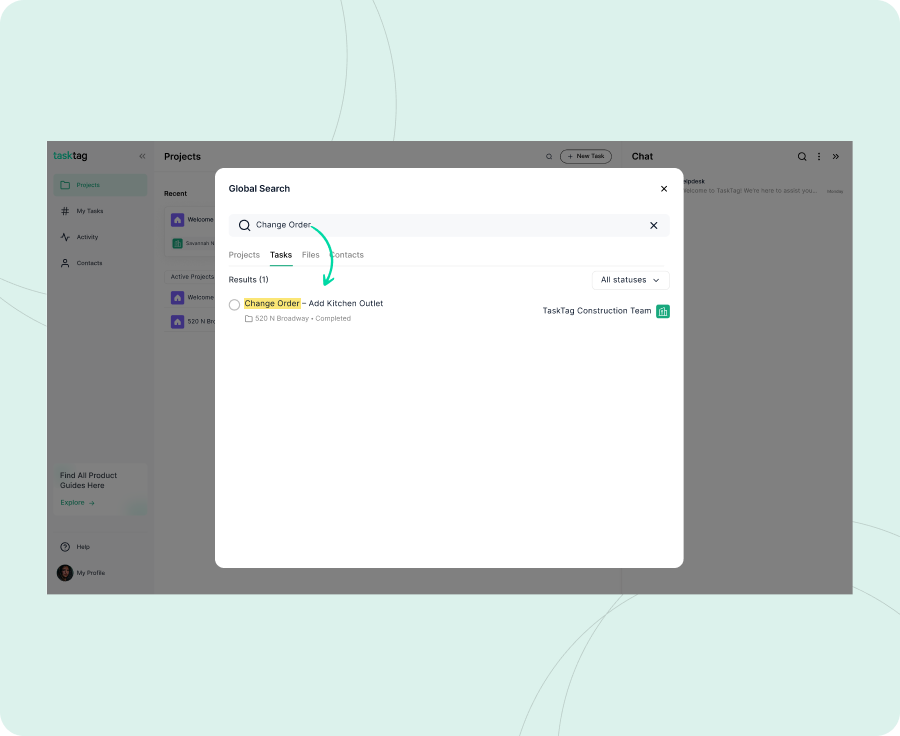
Before final billing, you need to see every change order for the job at a glance.
In TaskTag, filter tasks by keyword: Change Order
This instantly shows:
- All scope changes for this project
- Current approval status (checklist completion)
- Photos and documentation for each change
- Pricing notes added by office team
- Client approval records
Search examples:
- Filter tasks by "Change Order" → See all extras for this job
- Search chat for
#ChangeOrders→ Find all discussions about scope changes - Review task comments → Confirm all approvals are documented
No more spreadsheets or manual tracking. Your change order log is built automatically as work happens.
Once your project is ready for final billing:
Review the change order log:
- ✅ Ensure all checklists are complete
- ✅ Confirm pricing is calculated
- ✅ Verify client approvals are documented
- ✅ Check that photos support the scope change
Add to invoice:
- Export change order details to QuickBooks, Buildertrend, or your billing system
- Attach photos as backup documentation if needed
- Reference the TaskTag task for dispute resolution
Archive or reference:
- Mark change order tasks as Complete
- Keep the full record in the project for future reference
- If warranty or insurance questions arise, search the project to find the original documentation
Pro Tip: For recurring change order types (like "Add Outlet" or "Tile Upgrade"), duplicate a template task and just update the specifics—saves time and ensures consistency.
Related: ChatGPT for Construction Estimates and Budget Tracking
What a Complete Change Order Looks Like in TaskTag
Project: Acme Corp - Q1 2026 Social Media Campaign
Task: Client Onboarding - Acme Corp
Activity log includes:
|
Type |
Example |
|
✅ Checklist |
All 10 onboarding items completed |
|
📎 File |
Signed service agreement (PDF uploaded Jan 15) |
|
📎 File |
Brand guidelines document (PDF uploaded Jan 16) |
|
📎 File |
Logo files package (ZIP uploaded Jan 16) |
|
💬 Message |
"Contract signed by Sarah at Acme. Moving to kickoff. #Onboarding_AcmeCorp" |
|
💬 Message |
"Kickoff call completed. Timeline approved. First milestone: Feb 1. #Onboarding_AcmeCorp" |
|
💬 Message |
"Social media account access confirmed. Ready for content creation. #Onboarding_AcmeCorp" |
Best Practices for Change Order Tracking with TaskTag
Use consistent task naming
Always start with "Change Order –" so you can filter and search instantly
Document immediately on-site
Don't wait until the end of the day—capture photos and notes while the crew is still there
Take clear before-and-after photos
Visual proof justifies the work during billing and protects against disputes
Always document who approved the change
Include client name, approval method (verbal, email, text), and timestamp
Review change orders weekly
Don't wait until final billing to discover you missed logging a change
Sync with your billing software
Export change order details to QuickBooks or your estimating tool for seamless invoicing
Train your field teams
Make it a habit: If scope changes, create the task before starting the work
Related: TaskTag vs CompanyCam for Change Order Management
Done State Checklist
- Change order task created for every scope change
- Photos and description added immediately
- Task title starts with "Change Order –"
- Office reviewed and calculated pricing
- Client approval documented in comments
- Checklist completed
- Added to final invoice or change order document
- Full record archived in project for future reference
Business Impact: How Change Order Tracking Protects Your Profitability
✅ Capture every billable change — No more "forgot to log it" lost revenue
✅ Eliminate client disputes — Timestamped photos and approvals settle arguments instantly
✅ Speed up final billing — Filter change orders and export in minutes, not hours
✅ Create accountability — Field teams and office know exactly what's pending
✅ Build client trust — Transparent documentation shows professionalism
✅ Protect against warranty claims — Full record of what changed and when
"We were losing $3,000-$5,000 per job on undocumented extras. TaskTag's change order workflow helped us bill for every single scope change—with photo proof clients couldn't argue with." — Mike T., Remodeling Contractor
Frequently Asked Questions: Change Order Tracking with TaskTag
Q1: What if my crew forgets to create the change order task on-site?
A: Build it into your workflow as a non-negotiable step: "Before starting extra work, create the change order task." You can also review project activity daily and flag missing change orders before billing. The sooner you catch it, the easier it is to document.
Q2: Can I use TaskTag for change orders even if my client approves via text or email?
A: Absolutely. Copy and paste the text message or email approval directly into the change order task comments. This centralizes all approvals in one place—no more hunting through message threads months later.
Q3: How do I handle change orders that happen during demolition or discovery?
A: Create the change order task immediately when the issue is discovered (e.g., "Change Order – Subfloor Repair"). Add photos of the damage, document the discovery, and get client approval before proceeding. This protects you from "why didn't you tell me?" disputes.
Q4: Can office staff add pricing without going to the jobsite?
A: Yes. Field crews document the scope change with photos and notes. Office staff review the task remotely, calculate pricing based on the documentation, and add it to the checklist. Everything happens in the same task—no phone tag required.
Q5: What if the client disputes a change order charge after the fact?
A: Pull up the TaskTag change order task and show them: timestamped photos, their written approval in comments, the scope description, and when the work was completed. This documentation settles disputes immediately. Related: Client Communication Best Practices.
Q6: How is this different from using a spreadsheet to track change orders?
A: Spreadsheets don't have photos, timestamps, client approval records, or automatic linking to the job. TaskTag puts everything in one place—field documentation, office approvals, and billing prep—without manual data entry.
Ready to Stop Losing Revenue on Undocumented Change Orders?
With TaskTag's change order tracker workflow, you'll capture every scope change, document every approval, and bill for every extra—with photo proof that eliminates disputes.
No more "forgot to log it." No more "client says they didn't approve it." Just clean, organized change order documentation that protects your profitability.
Start your free trial today or book a demo to see how contractors are recovering thousands in lost revenue with TaskTag.
Free Plan
Free
No cost, no commitment
-
Send unlimited messages on web and mobile
-
Manage projects and tasks with core features
-
Create and track up to 3 active projects
-
2GB limit for photos, videos and files
TaskTag Teams
$16/month
Enjoy Unlimited contributors
-
Track all activity across your team with the Global Activity Log
-
Organize your crews with Contact Groups
-
Get unlimited Project creation and personalized white-glove onboarding