

TaskTag vs CompanyCam: Real-World Delivery Photo Proof Comparison I’m writing this from a jobsite...
.png?width=1080&height=810&name=6%20(1).png)
Making the Switch Without Slowing Down
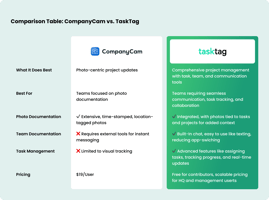
If your team relies on CompanyCam for everything from inspections to photo tracking, you may be running into its limitations. Unstructured data, no checklist logic, and limited task control can slow down repeatable work.
TaskTag gives you a more structured, scalable system — especially when it comes to inspections, checklists with logic, and managing contractor access.
Here’s how to transition smoothly, without losing the workflows your team already depends on..png?width=1080&height=810&name=1%20(10).png)
1. Use TaskTag for Inspections, Keep CompanyCam for Progress Photos
You don’t need to abandon CompanyCam entirely.
Use TaskTag for structured workflows like:
- Safety inspections
- Site readiness checklists
- Equipment audits
- Pre-delivery condition reports
Meanwhile, continue using CompanyCam for progress photos or general site documentation that doesn’t require structure or logic.
This dual-tool approach lets you keep what works while gaining the organization power that TaskTag offers.
2. Standardize Inspections with Reusable Templates
In TaskTag, inspection templates ensure repeatability and consistency.
Build a template once for:
- Pre-pour concrete inspections
- Final walk-throughs
- End-of-day protocols
- Equipment check-in/out
Then duplicate it across teams, trades, or job sites with a single click.
For teams managing multi-stop workflows, see how this approach works in the Recurring Delivery Route Workflow, where delivery crews replaced CompanyCam with TaskTag for structured stop-by-stop checklists.
3. Require Photo Uploads for High-Risk Checklist Items
CompanyCam is great for capturing images. TaskTag is better for requiring them.
Within a checklist, make photo uploads mandatory for critical safety or compliance items. For example:
- “Confirm ladder tie-off” — photo required
- “Gas line capped” — photo required
This ensures documentation happens where it’s needed most — not as an afterthought.
4. Use Conditional Logic to Trigger Follow-Ups Automatically
TaskTag supports conditional logic that adapts based on checklist responses.
For example:
- If “Crack found in foundation” = Yes → require photo and measurement
- If “Equipment failed inspection” = Yes → auto-assign repair task to maintenance
This turns your checklist into a smart system that responds in real time, without someone manually coordinating next steps.
5. Set Access Permissions for Contractors and Subcontractors
You can give contractors access to complete inspections — without exposing everything else.
TaskTag allows you to:
- Grant limited access to only the tasks or sites they need
- Require photos or form completion
- Prevent editing of past records or unrelated tasks
This keeps your data secure while making it easy for third-party teams to participate in your workflow.
6. Batch Duplicate Inspections Across Multiple Sites
If you manage recurring inspections across multiple locations, TaskTag allows you to duplicate inspections in bulk.
- Create one template
- Clone it across dozens of job sites
- Assign to different teams or contractors
- Track completion by site, region, or crew
This is especially helpful for franchises, facility managers, or regional leads who need one system to manage many parallel workflows.
Related: Recurring Delivery Route Workflow: Why Delivery Teams Are Replacing CompanyCam with TaskTag
Final Thought: Structure Where It Counts
CompanyCam is a great tool for capturing jobsite progress. But when your team needs structure, logic, and accountability — TaskTag does the heavy lifting.
Use both tools where they shine:
- CompanyCam for open-ended photo logs
- TaskTag for inspections, checklists, and structured workflows
You’ll reduce admin work, eliminate missed steps, and get full visibility — all without disrupting the flow of fieldwork.

.png?height=200&name=3%20(2).png)