.jpg?width=1620&height=1215&name=1%20(41).jpg)
What “Project Map It” Should Mean (Beyond Pins on a Map)
A real project map does more than show addresses. The best “map it” setup connects four things:
- Location (address, gate codes, access notes)
- Schedule (today’s visits, crew assignments, deadlines)
- Tasks (what must be completed at each site)
- Documentation (photos, notes, approvals, punch lists)
If any of those are missing, you’re stuck in the common trap: “We have a map… but the job info is still scattered in texts, camera rolls, and spreadsheets.”
Who Benefits Most from a “Project Map It” Workflow?
General contractors
You’re coordinating trades, inspections, and client updates. A map-based view helps prioritize site visits and ensures each visit has a purpose (punch list, progress check, delivery).
Subcontractors (painting, flooring, concrete, fencing, etc.)
You need routing, quick status updates, and photo proof to get paid and get rehired.
Landscaping & outdoor contractors
If you run multi-property routes (maintenance) or multiple installs at once, mapping becomes operational. Many teams already use landscaping project management software or landscape project management software for scheduling—adding map context makes it easier to plan routes and reduce windshield time.
The “Project Map It” Stack: What to Track for Each Job Pin
When you click a project on the map, you should see:
- Project status: Lead / Scheduled / In progress / Punch / Complete
- Next action: the single most important thing to move it forward
- Assigned crew: who’s responsible today
- Key tasks: 5–15 checklist items (not 100)
- Photos: before/during/after + issues
- Files: proposal, signed docs, permits, plans
- Client notes: access, pets, preferred contact method
- Time log: quick labor summary (optional)
This is where systems that feel like general contractor software shine—because they combine scheduling, tasks, and documentation instead of forcing you to jump between apps.
Map-Based Operations Workflow (Simple + Repeatable)
.jpg?width=800&height=600&name=1%20(42).jpg)
Step 1: Standardize your project naming
Use a consistent naming format:
- LastName – Street – City (residential)
- SiteName – Building # – Unit # (multi-site)
- Client – Project Type – Phase (commercial)
This makes search and reporting easier, and it keeps photos and tasks grouped correctly.
Step 2: Build location-first scheduling
Instead of scheduling purely by date, plan your week by:
- geographic clusters (north/south/east/west)
- job priority (inspection, pour day, closeout)
- crew skill match
This alone can reduce travel time significantly.
Step 3: Tie tasks to map pins (construction task management)
Each project should have a short set of repeatable checklists by phase (examples):
Pre-start checklist
- verify scope
- confirm materials ordered
- confirm access
- confirm permits/utility locates
Build phase checklist
- daily target tasks
- blockers
- quality checks
Punch/closeout checklist
- touchups
- cleanup
- final photos
- client sign-off
That’s construction task management in practical form: fewer dropped balls, faster closeouts.
Step 4: Require photo proof (construction photo documentation)
If it isn’t documented, it didn’t happen—at least in the client’s mind.
Set a standard:
- Before photos: existing conditions, damage, site constraints
- Progress photos: hidden work (framing, base prep, waterproofing, wiring routes)
- After photos: final condition + closeups
Using a construction photo app or construction photo documentation app makes it fast for crews to capture and upload photos on-site.
As you scale, you’ll want photos to be searchable and tied to the right job automatically—this is the big advantage of construction photo management software and construction photo documentation software over scattered camera roll uploads.
Step 5: Track time lightly (job costing without pain)
You don’t need an accounting overhaul to start learning production rates.
- Track hours by project + phase using a free time tracking app for contractors
- Review weekly: planned vs actual
- Adjust your estimating rates monthly
How to Turn “Project Map It” into a Client Trust Machine
.jpg?width=800&height=600&name=1%20(43).jpg)
A mapped system is not just for you—it improves client communication:
- “Here’s where we’re at” (status + next task)
- “Here’s what we found” (photo + note)
- “Here’s what changed” (change order + approval)
- “Here’s what’s done” (closeout photos)
This reduces callbacks, improves reviews, and gives you marketing assets.
Portfolio ideas that come from mapping + documentation
These portfolio ideas for general contractors can be generated from your mapped job history:
- before/after collections by neighborhood
- “3-job week” recap posts with progress photos
- case studies: problem → process → result
- seasonal highlight reels (landscaping: spring cleanups, fall prep, patio season)
Branded + Non-Branded Tools (How TaskTag Fits)
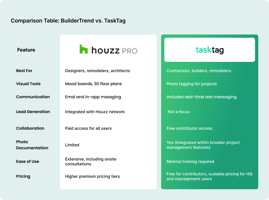
If you’re looking for a simple way to organize mapped projects with tasks and photo updates, TaskTag (branded) can support a workflow where:
- tasks are assigned per project
- progress updates are posted consistently
- photos are attached to the right job and task
- punch lists are trackable through completion
This complements (not replaces) your mapping needs while aligning with modern expectations around construction photo documentation and construction task management.
Non-branded categories to evaluate alongside any tool:
- general contractor software (all-in-one scheduling + tasks + docs)
- construction photo documentation software (photo-first documentation + reports)
- construction photo management software (tagging, search, sharing)
- landscaping project management software / landscape project management software (route planning + multi-crew scheduling)
Common Mistakes When You “Map It”
- Pins with no next step → map becomes a graveyard of addresses
- Photos not tied to tasks → you have proof, but not context
- No naming standard → duplicates and confusion
- No closeout routine → projects linger in “almost done” forever
Fix these and your map becomes an operations dashboard.
FAQ: Project Map It
1) What does “project map it” mean for contractors?
It means organizing your jobs by location and connecting each site to its schedule, tasks, and documentation—so you can see what’s happening where, at a glance.
2) Is a project map useful for small contractors with only a few jobs?
Yes. Even with 3–5 active jobs, mapping reduces drive time, improves planning, and keeps notes/photos from getting lost.
3) How do I keep job photos organized when using a map-based workflow?
Use consistent project naming and store photos by job + date + phase. A construction photo documentation app or construction photo app helps crews capture photos quickly; construction photo management software helps keep them searchable as you scale.
4) What’s the difference between construction photo documentation software and photo storage?
Construction photo documentation software is built for job context—photos tied to projects, tasks, and reports. Basic storage tools keep files, but don’t always support job timelines, tagging, approvals, and easy retrieval.
5) Can landscaping companies use the same “map it” approach?
Absolutely. Mapping is especially powerful for route planning and multi-site scheduling. Many teams pair maps with landscaping project management software or landscape project management software.
6) How do tasks fit into a mapped project system?
Tasks give each site a “next step” and prevent forgotten items. A checklist-based approach is practical construction task management—even for non-construction trades.
7) How can I track labor without complicated systems?
Start with a free time tracking app for contractors and log hours by project and phase. Use the data to improve estimating and crew planning.
8) How can TaskTag help with a “project map it” workflow?
TaskTag can centralize task updates, punch lists, and photo pr
oof per project—making it easier to communicate progress and maintain clean records.