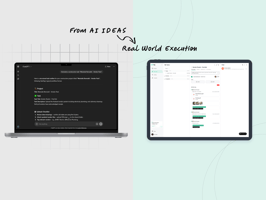

Construction planning doesn’t have to start with a blank screen or a whiteboard full of sticky...
.png?width=1080&height=810&name=1%20(7).png)
How construction teams are using AI + TaskTag to streamline change order communication, approvals, and tracking — without a dedicated system.
Why Change Orders Hurt (and Where AI Helps)
Change orders are where construction projects often go sideways:
- Vague descriptions ("extra work in hallway")
- Confusing pricing and time impacts
- Scattered email threads and messages
- Lost or delayed approvals
ChatGPT can help you generate clear, professional change order communication in minutes. TaskTag turns that communication into a trackable, actionable change order process — complete with tasks, checklists, chats, and approvals.
Step 1: Draft Clear Change Requests with ChatGPT
Skip the blank screen. Start with AI.
Example ChatGPT Prompt:
“You are a construction project manager. Draft a clear, professional change order description for a residential kitchen renovation.
Original scope: replace existing cabinets with new stock cabinets.
Change: client wants custom cabinetry with soft-close hardware and additional pantry cabinet.Include: description of work, reason for change, estimated cost impact, and schedule impact in working days.”
What ChatGPT gives you:
- Scope description
- Reason for change
- Cost and time impact
- Language that’s client-ready
Internal Summary Prompt:
“Summarize this change order in 3–4 bullet points for my internal team. Focus on scope impact, schedule impact, and key risks.”
Use this for quick internal alignment before sending anything out.
Step 2: Use TaskTag Projects to Anchor Every Change
Once you’ve got a clean description from ChatGPT:
- Open the relevant project in TaskTag (e.g., Raintree Renovation)
- Create a task:
- Title: CO-07 – Custom Kitchen Cabinets Upgrade
- Description: Paste the ChatGPT-generated change copy
- Add a task checklist:
- Update drawings
- Confirm pricing
- Send change order to client
- Confirm client decision
- Notify subcontractors
Why it works: Even without a "change order" module, TaskTag lets you track every change as a searchable, reportable task.
Step 3: Track Approvals and Conversations in TaskTag Chat
Every TaskTag project has chat — and that’s where your change orders live.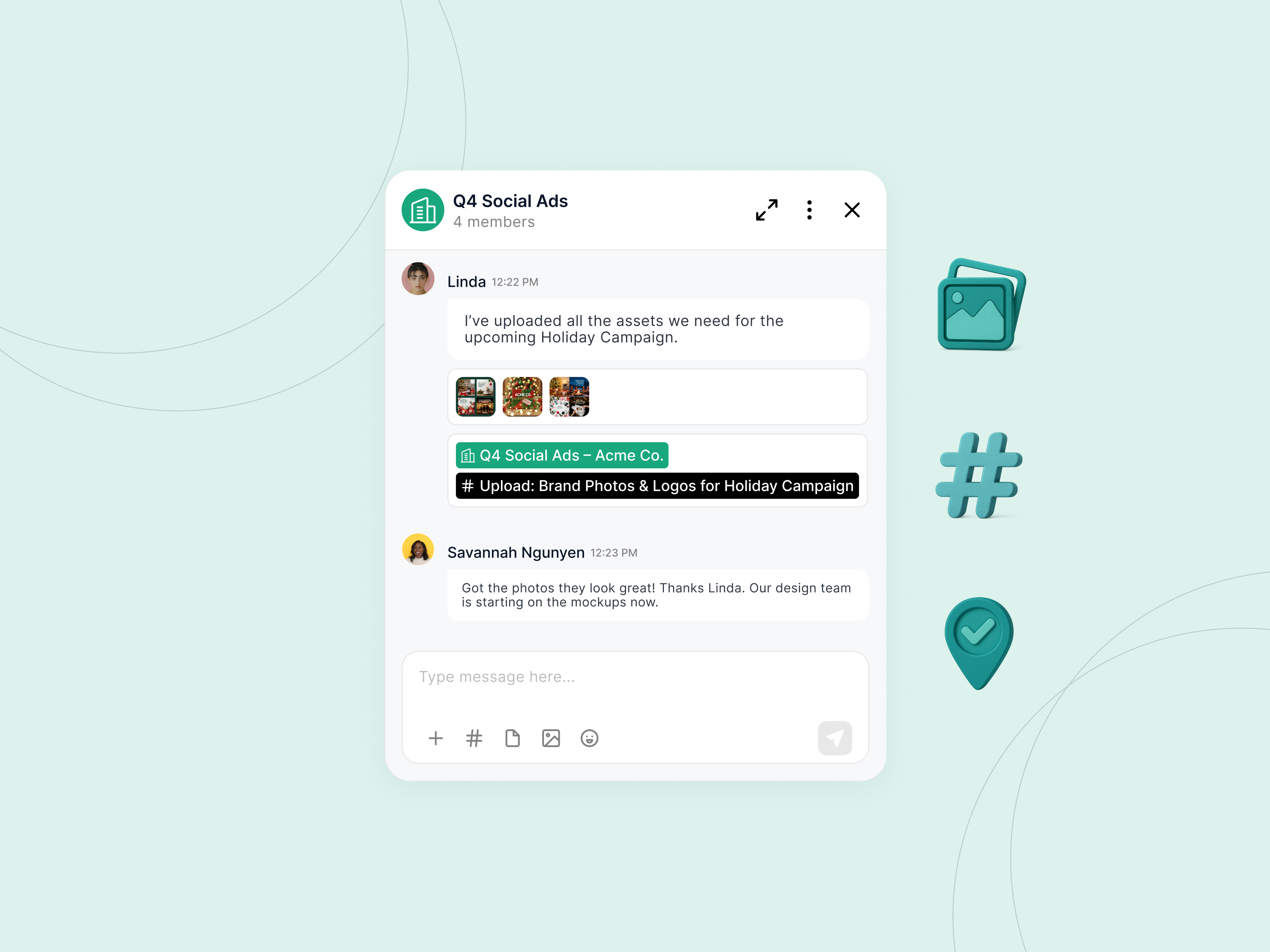
Use chat to:
- Comment back and forth with your team
- Attach drawings, screenshots, PDFs
- Add check-ins like: “Client verbally approved, confirmation pending”
- Tag the chat to the change-order task or project
Pro Tip: Tagging chats keeps all context tied to the task — no more “What did the client say about CO-07?” moments.
Step 4: Use Task Checklists to Make Change Orders Actionable
Change orders = mini-projects. Use TaskTag checklists to keep them on track.
Example Task Checklist:
- Confirm measurements
- Finalize cabinet shop drawings
- Lock supplier quote
- Send formal CO to client
- Get approval
- Update schedule
- Notify field crew
Project-Level Checklist:
- CO-05 – Electrical Revisions – ✅ Approved
- CO-06 – Additional Tiling – ⏳ Pending
- CO-07 – Custom Cabinets – 🧐 In Review
Now your team has lightweight change order tracking baked into every project.
Step 5: Speed Up Negotiations with AI‑Generated Alternatives
Clients stall when they don’t understand options or implications.
Use ChatGPT to generate choices and explanations.
Prompt for Options:
“Create 3 options for this change order:
Option A: cheapest, minimal scope
Option B: standard upgrade
Option C: premium upgradeInclude pros/cons and cost/time impact for each.”
Prompt for Plain Language:
“Explain this change order in simple terms for a homeowner. Focus on why the cost is increasing and what value they get.”
Paste into TaskTag chat, tag the change task, and collaborate before sending to the client.
Step 6: Keep Everything Connected with Tags in TaskTag Chat
Don’t lose the thread.
With TaskTag’s tag system, you can link:
- The task that represents the change
- The chat where it’s discussed
- The project it belongs to
Practical Workflow:
- Create task: CO-08 – Wall Relocation
- Start chat → tag it to CO-08
- Upload drawings, quotes, approvals
- Add check-in: “Approved via email, updating schedule”
Now anyone opening CO-08 sees the full context — no email digging, no guesswork.
Step 7: Build a Change Order Template Library with ChatGPT
Use ChatGPT to build reusable templates and prompts:
- Standard CO description templates
- Internal risk checklists
- Client email templates
- Field note prompts
Save each one as a TaskTag task or checklist in a reference project:
“Change Order Playbook”
- CO – Description Template
- CO – Internal Review Checklist
- CO – Client Email Template
Teams can duplicate these into new jobs and adapt fast.
Day-in-the-Life Example: AI + TaskTag for Change Orders
- Site supervisor posts photos in TaskTag chat and tags the project
- PM drafts CO in ChatGPT
- PM creates TaskTag task: CO-08 – Wall Relocation
- Checklist: drawings, pricing, approval
- Team chats, refines, attaches quotes and drawings
- Client approves → check-in added: “Approved via email”
- Task stays as permanent record
📌 You’ve just turned a messy change into a traceable, collaborative workflow.
Final Thoughts: Smarter Change Order Management with AI + TaskTag
You don’t need a huge system to manage change orders better.
Use ChatGPT for:
- Clear, professional change descriptions
- Negotiation-ready options
- Client-friendly language
Use TaskTag for:
- Anchoring changes in projects and tasks
- Tracking approvals through chats
- Linking everything with tags and checklists
Ready to Transform Your Change Order Workflow?
Try TaskTag free or book a demo:
👉 Start Your Free Trial
.png?height=200&name=1%20(17).png)