
Field Inspection Software for Construction & Facilities: Complete Workflow Guide

Why Construction and Facility Teams Need Digital Inspection Management Software
Whether you're inspecting jobsite safety, building systems, or post-construction punch lists, inconsistent inspection processes create risk. Paper checklists get lost. Photos end up scattered across phones. And when something goes wrong, there's no reliable record.
TaskTag turns field inspections into structured, repeatable workflows—complete with photo documentation, timestamps, and exportable reports. No more guesswork, no more gaps in compliance.
Who this is for: Site superintendents, safety managers, facilities coordinators, property managers, QA/QC teams, and general contractors running multi-site inspections.
What this solves: This workflow replaces paper forms, scattered photos, and manual report writing with a mobile-first inspection system that creates an instant audit trail.
Related Guides: Daily Field Reports | Safety Tracker | Delivery Photo Proof
Common Field Inspection Challenges: Paper Forms, Lost Photos, and Compliance Gaps
Without TaskTag, inspections often rely on:
- Paper checklists that get wet, torn, or forgotten in trucks
- Generic forms that don't fit your specific requirements
- Photos stored randomly across devices with no context
- Manual report assembly from multiple sources
- No way to prove inspection timing or completion
This leads to:
- Incomplete inspections and missed safety issues
- Lost documentation during audits or disputes
- Wasted time recreating reports from memory
- No accountability for who inspected what and when
- Frustrated inspectors doing double work
How TaskTag's Inspection Workflow Creates Audit-Ready Documentation
With this setup in TaskTag:
- You create an Inspection Project for a building, site, or system
- You build a standardized checklist template that fits your exact needs
- Each inspection becomes a task with required photo documentation
- Field staff complete inspections on mobile with real-time timestamps
- Every photo, comment, and check-off is automatically logged
You export a complete inspection report in seconds—ready to share or archive.
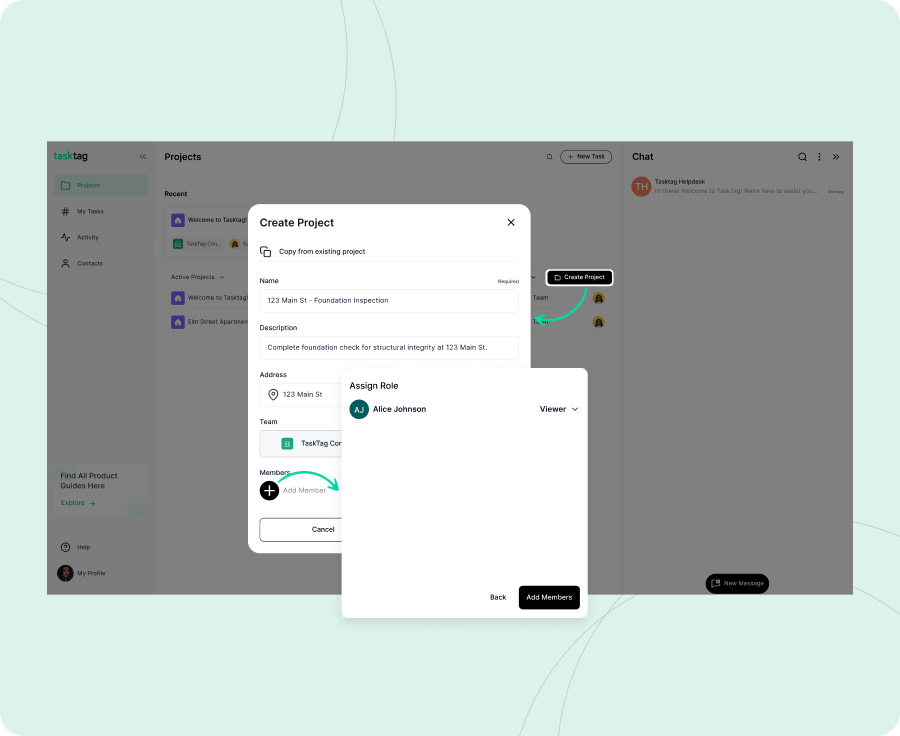
Create a project for the location or inspection program you're managing:
- Weekly Safety Inspections - Main Street Site
- Monthly HVAC System Checks - Building 3
- Pre-Occupancy Punch List - Riverside Apartments
- Quarterly Fire Safety Audit - Corporate Campus
Pro Tip: Use the project address to enable geolocation verification—proof your team was actually on-site during inspection.
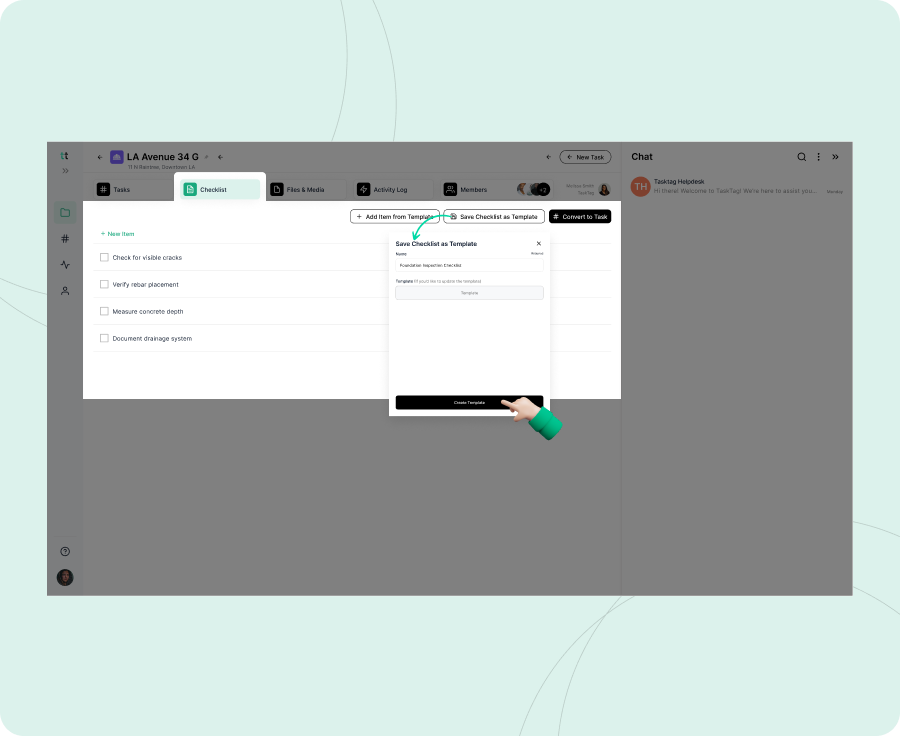
Create a repeatable checklist that matches your inspection requirements.
Examples:
Construction Safety Inspection Checklist Template:
- [ ] PPE compliance verified (photos required)
- [ ] Fall protection systems inspected
- [ ] Emergency exits clear and marked
- [ ] Fire extinguisher locations checked
- [ ] Electrical panels accessible and labeled
- [ ] Housekeeping standards met
For more safety compliance workflows, see our Safety Tracker Guide and ChatGPT for Construction Safety article.
Facility Maintenance Inspection Checklist Template:
- [ ] HVAC filters checked and documented
- [ ] Plumbing fixtures operational (photo any leaks)
- [ ] Lighting systems functional
- [ ] Door hardware tested
- [ ] Roof drains clear of debris
- [ ] Notes entered for any deficiencies
Why this matters: A standardized checklist ensures nothing gets skipped—even when different inspectors are on rotation.
For each scheduled inspection, create a task and name it clearly:
- Safety Inspection - January 15, 2026
- Building 3 HVAC Check - Q1 2026
- Pre-Drywall Walkthrough - Unit 204
Include specific instructions in the task description:
- Areas to focus on
- Known issues from previous inspections
- Special requirements (confined space, after-hours access)
- Contact info for building management or key holders
Learn more about photo documentation in our Delivery Photo Proof Guide and read how teams are transitioning from CompanyCam to TaskTag.
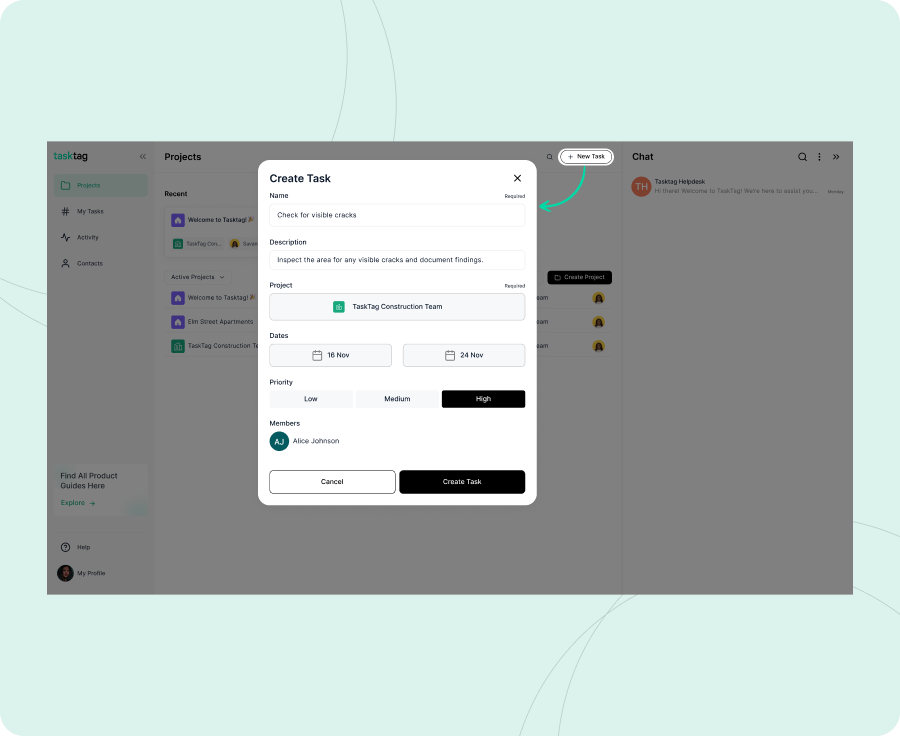
Assign the task to:
- Your field inspector or safety manager
- An external contractor or subcontractor
- A facilities technician responsible for that system
Important: Make sure you're connected with assignees in TaskTag before assigning the task.
Set start and due dates to create accountability:
- Start Date: When inspection access is available
- Due Date: Compliance deadline or next scheduled inspection
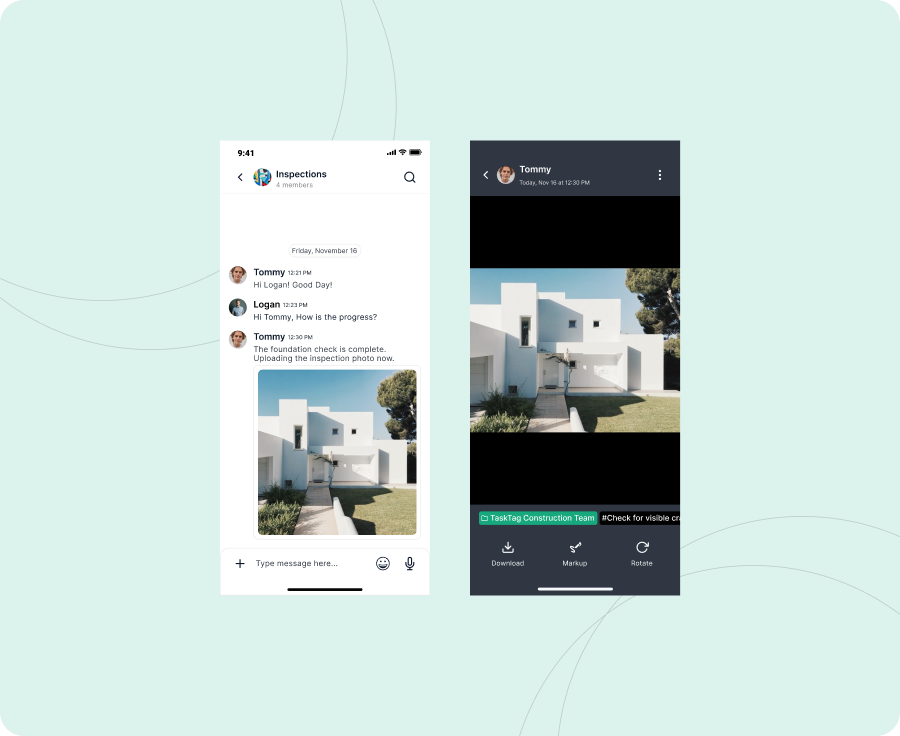
As your inspector moves through the checklist, they capture photos directly in the TaskTag mobile app:
- Wide shots showing overall conditions
- Close-ups of deficiencies or damage
- Before-and-after photos if repairs are made on-site
- Photos of compliance tags, gauges, or labels
All photos are automatically timestamped and geotagged — creating indisputable proof of when and where the inspection occurred.
Inspectors can also add comments directly in the task or via chat using the project hashtag (e.g., #Building3_HVAC):
"Filter replaced in Unit 3A. Old filter showed heavy dust accumulation. #Building3_HVAC"
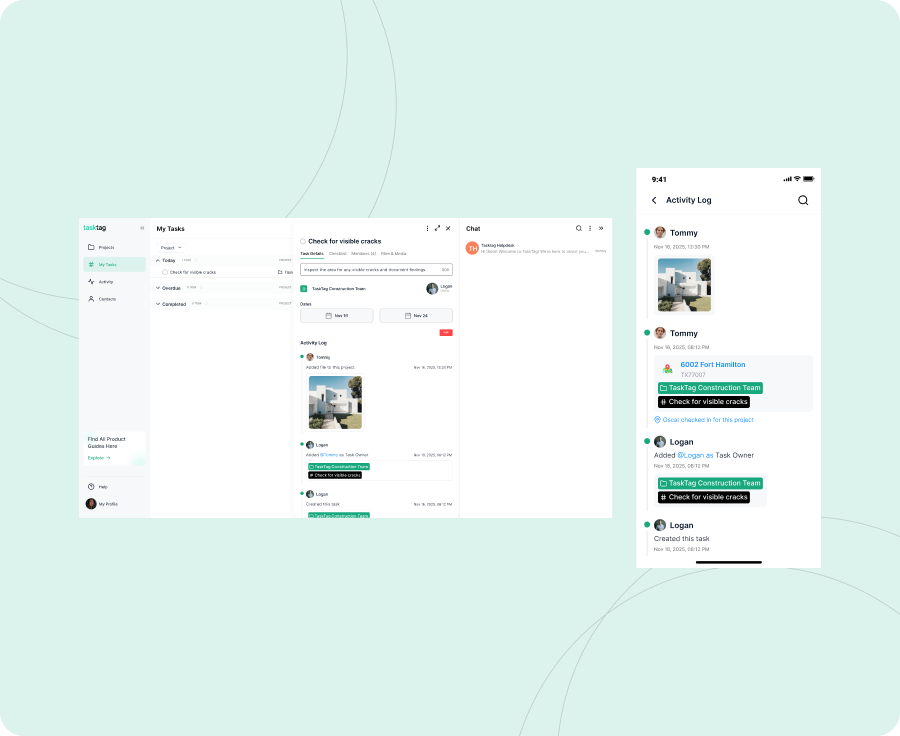
Once the inspector has:
- ✅ Checked off all items on the list
- 📷 Uploaded required photos
- 💬 Added notes or deficiency details
They mark the task Complete.
What happens next:
- The completed inspection is instantly available to project managers
- All stakeholders with project access can view results in real time
- The inspection record is permanently archived with timestamps
No more waiting for handwritten reports or follow-up emails. Everything is done the moment the inspector leaves the site.
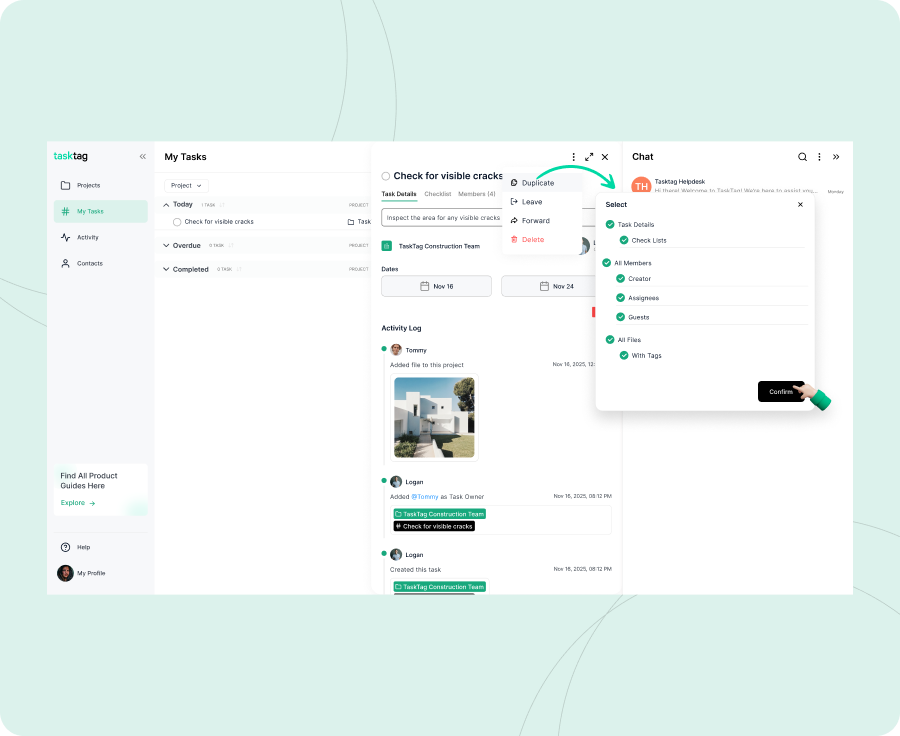
TaskTag automatically compiles your inspection into a shareable record that includes:
- Complete checklist with check-off status
- All uploaded photos with timestamps
- Inspector comments and notes
- Geolocation data (if enabled)
- Task completion date and time
You can:
- Share the entire project with clients, insurance adjusters, or compliance officers
- Share individual tasks for specific inspections
- Export the data for your own records or audit files
Pro Tip: For recurring inspections, duplicate the completed task and update the date—your checklist template carries over automatically.
For recurring workflows, check out our Maintenance Schedule Guide and Permit & Inspection Tracking article.
What a Complete Daily Field Report Looks Like in TaskTag
Task: Daily Field Report – June 26
Activity log might include:
Task: Safety Inspection - January 15, 2026
|
Type |
Example |
|
📷 Photo |
PPE compliance photo with 5 workers in proper gear |
|
📷 Photo |
Fall protection anchor point inspection |
|
📎 File |
Fire extinguisher inspection tag (photo uploaded) |
|
💬 Message |
"Electrical panel in Trailer B missing cover. Flagged for immediate repair. #MainStreet_Safety" |
|
💬 Message |
"All exit routes clear. Housekeeping improved from last week." |
|
✅ Checklist |
All 12 inspection items completed and signed off |
Field Inspection Best Practices: Templates, Photos, and Documentation
Create reusable templates
Save time by duplicating tasks instead of building from scratch each time
Require photos for critical items
Don't just check the box—capture visual proof
Use consistent naming conventions
Makes inspections searchable by date, location, or system
Tag in chat using the project hashtag
Everything stays organized and attached to the inspection record
Complete inspections immediately on-site
Real-time documentation prevents forgotten details
Share access strategically
Give clients or auditors view-only access without cluttering their inbox
See how field teams document in real time in our Daily Report Guide.
Done State Checklist
- [ ] Inspection project created
- [ ] Master checklist template built
- [ ] Individual inspection tasks created with dates
- [ ] Tasks assigned to field staff or contractors
- [ ] Photo requirements clearly defined
- [ ] Inspections completed with timestamped proof
- [ ] Final reports exported or shared
- [ ] Template duplicated for next inspection cycle
How Digital Inspections Reduce Compliance Risk and Save Hours Per Inspection
✅ Eliminates compliance gaps — Standardized checklists ensure nothing is missed
✅ Creates defensible documentation — Timestamped photos prove when and where inspections occurred
✅ Speeds up reporting — No more manual report writing or photo hunting
✅ Improves accountability — You know exactly who inspected what and when
✅ Reduces insurance risk — Complete audit trails protect you during claims or disputes
✅ Saves hours per inspection — Field teams document as they go, not after the fact
"If it's not documented in TaskTag, it didn't happen. But with timestamped photos and checklists, there's no question."
Frequently Asked Questions: Field Inspections with TaskTag
Q1: Can I customize the inspection checklist for different types of inspections?
A: Absolutely. Create as many checklist templates as you need—one for safety, one for HVAC, one for punch lists. Each task can have a unique checklist, or you can duplicate and modify as needed.
Q2: What happens if an inspector loses cell service during the inspection?
A: TaskTag works offline. Your inspector can complete the entire checklist, upload photos, and add notes without a signal. Everything syncs automatically once they're back online.
Learn more about mobile-first construction management.
Q3: Can I require specific photos before marking an inspection complete?
A: Yes. Add photo requirements directly in your checklist (e.g., "Photo of fire extinguisher inspection tag"). You can also set task descriptions to remind inspectors which photos are mandatory.
Q4: How do I prove an inspection was done on time and on-site?
A: Every photo uploaded in TaskTag is automatically timestamped. If you enable geolocation for the project, you'll also have GPS verification that the inspector was physically at the location.
Q5: Can external contractors or subcontractors use TaskTag for inspections?
A: Yes. You can assign tasks to external users as long as you're connected with them in TaskTag. They'll have access only to the inspections you assign—not your entire project history.
Q6: How do I share inspection results with clients or compliance officers?
A: You can share the entire project or individual tasks. TaskTag creates a clean, shareable view that includes all photos, checklists, and comments without exposing internal team chat.
Ready to Run Field Inspections the Right Way?
With TaskTag's field inspection workflow, you'll have standardized, timestamped, photo-documented proof that inspections were completed—exactly when and where they should be.
No more paper trails. No more missing photos. No more scrambling during audits.
Book a demo today and see how TaskTag turns inspection chaos into compliance confidence.Free Plan
Free
No cost, no commitment
-
Send unlimited messages on web and mobile
-
Manage projects and tasks with core features
-
Create and track up to 3 active projects
-
2GB limit for photos, videos and files
TaskTag Teams
$16/month
Enjoy Unlimited contributors
-
Track all activity across your team with the Global Activity Log
-
Organize your crews with Contact Groups
-
Get unlimited Project creation and personalized white-glove onboarding